Part 1: The Software
Language Reference
Programming an Arduino involves writing instructions that tell the microcontroller what to do. To create useful programs, we use specific building blocks: containers to hold data (variables), tools to modify that data (operators), and structures to make decisions (conditional statements).
Storing Data with Variables
A variable is a named container in the Arduino's memory that holds a piece of information. You must tell the Arduino what type of data the variable will hold. Common types include:
Organizing Groups of Data with Arrays
An array is a single variable that can hold a fixed number of values of the same type. For example, to store the last five temperature readings, you could use: float temperatures[5];
You define an array by stating the data type, the array name, and the number of items in square brackets. You access each item using an index number in square brackets, which starts counting from 0. The first item is temperatures[0], the second is temperatures[1], and so on. Arrays can be used with any data type, including int, float, char, or String.
- int: For whole numbers within a common range, like a count of button presses (e.g., int score = 0;).
- short: Similar to int but used for smaller whole numbers when saving memory is a consideration.
- long: For very large whole numbers, often used for timing measurements (e.g., long duration = 1500000;).
- float: For numbers with decimal points, like a sensor reading (e.g., float temperature = 23.7;).
- bool: For a simple true or false value, like a button state (e.g., bool isPressed = false;).
- char: For a single text character, like a letter or symbol (e.g., char firstLetter = 'A';).
- String: For storing sequences of text, like a word or a message (e.g., String userName = "Arduino";).
- unsigned: A modifier for int or long to specify the variable can only hold positive numbers (e.g., unsigned int distance = 500;).
Organizing Groups of Data with Arrays
An array is a single variable that can hold a fixed number of values of the same type. For example, to store the last five temperature readings, you could use: float temperatures[5];
You define an array by stating the data type, the array name, and the number of items in square brackets. You access each item using an index number in square brackets, which starts counting from 0. The first item is temperatures[0], the second is temperatures[1], and so on. Arrays can be used with any data type, including int, float, char, or String.
Arduino Variable Types Reference
// VARIABLE TYPE EXAMPLES

// 1. INTEGER (int) - for whole numbers
int buttonPressCount = 0;      // Counts how many times a button is pressed
int sensorPin = A0;            // Stores an analog pin number

// 2. SHORT INTEGER (short) - for smaller whole numbers, uses less memory
short smallCounter = 100;      // Suitable for values from -32,768 to 32,767
short ledBrightness = 255;     // Maximum PWM value for an LED

// 3. LONG INTEGER (long) - for very large whole numbers
long systemUptime = 86400000;  // Time in milliseconds (1 day)
long bigDistance = 1000000;    // A distance value in millimeters

// 4. UNSIGNED INTEGER (unsigned int) - for positive whole numbers only
unsigned int lightLevel = 1023;// Analog read maximum value (0-1023)
unsigned int rpm = 6500;       // Motor speed - cannot be negative

// 5. FLOATING POINT (float) - for numbers with decimals
float temperature = 23.75;     // Temperature reading in Celsius
float voltage = 3.291;         // Measured voltage from a sensor

// 6. BOOLEAN (bool) - for true/false logic states
bool isDoorOpen = false;       // Tracks the state of a door sensor
bool systemActive = true;      // Main system on/off flag

// 7. CHARACTER (char) - for single text characters
char menuSelection = 'A';      // User's choice from a menu
char gradeLetter = 'B';        // A single letter grade

// 8. STRING (String) - for sequences of text
String userName = "Arduino";   // User's name or identifier
String statusMessage = "System Ready"; // Display message

// 9. ARRAY (int[], float[], etc.) - for lists of values
int sensorReadings[5] = {0, 0, 0, 0, 0}; // Array of 5 integers
float coordinates[3] = {1.5, 2.3, 4.7};  // X, Y, Z coordinates
char password[4] = {'A', 'B', 'C', 'D'}; // Array of 4 characters

// VARIABLE DECLARATION PATTERNS:
// 1. Declaration with initialization:
int counter = 0;

// 2. Declaration without initialization (gets default value):
int uninitializedValue; // Contains an unpredictable value until set

// 3. Declaration with later assignment:
int sensorValue;
sensorValue = analogRead(A0); // Value assigned during program run

// SPECIAL NOTES:
// - Variables declared in setup() or loop() are LOCAL to that function
// - Variables declared outside functions (like these) are GLOBAL
// - Choose the smallest data type needed for your values to save memory
Modifying Data with Arithmetic Operators
Arithmetic Operators let you perform mathematical calculations with variables and numbers.
- = (assignment): Stores a value in a variable (e.g., x = 5;).
- +, -, *, /: Perform addition, subtraction, multiplication, and division (e.g., average = (a + b) / 2;).
- % (modulo): Gives the remainder after division (e.g., remainder = 10 % 3; results in 1).
Arithmetic Operators Reference
// Basic arithmetic operators
result = a + b;   // Addition
result = a - b;   // Subtraction
result = a * b;   // Multiplication
result = a / b;   // Division
result = a % b;   // Modulo (remainder)

// Using parentheses to control order of operations
result = (a + b) * c;     // Add first, then multiply
result = a + (b * c);     // Multiply first, then add
result = (a * b) / (c + d); // Multiple operations with grouping
Making Comparisons
Comparison Operators are used to compare two values, resulting in a true or false answer. They are essential for making decisions in your code.
- == (equal to): Checks if two values are the same.
- != (not equal to): Checks if two values are different.
- >, <, >=, <=: Check if one value is greater than, less than, greater than or equal to, or less than or equal to another.
Comparison Operators Reference
a == b  // Equal to
a != b  // Not equal to
a > b   // Greater than
a < b   // Less than
a >= b  // Greater than or equal to
a <= b  // Less than or equal to
Combining Conditions with Boolean Operators
Boolean Operators allow you to combine multiple true/false conditions into a single test.
- && (logical AND): The overall condition is true only if both individual conditions are true.
- || (logical OR): The overall condition is true if at least one of the individual conditions is true.
- ! (logical NOT): Inverts a condition from true to false, or false to true.
Logical Operators Reference
(a > b) && (a > c)  // Logical AND: true if BOTH conditions are true
(a > b) || (a > c)  // Logical OR: true if AT LEAST ONE condition is true
!(a > b)            // Logical NOT: inverts the result (true becomes false)
Making Decisions with Conditional Statements
Conditional statements control which parts of your code run based on whether a condition is true or false.
- if: Runs a block of code only if its condition is true.
- else if: Provides an alternative condition to check if the previous if was false.
- else: Provides a default block of code that runs if all previous if and else if conditions were false.
If-Else If-Else Statement Structure
if (a > b) {
    // Code runs if a > b is true
} else if (a == b) {
    // Code runs if the first condition was false, but a == b is true
} else {
    // Code runs if all conditions above were false
}
Controlling Loops with Break and Continue
Within loops like for or while, two special commands can change the flow:
- break: Immediately exits and stops the loop entirely.
- continue: Skips the rest of the code inside the loop for the current iteration and jumps to the start of the next loop cycle.
Break and Continue Statements
// Inside a 'for' or 'while' loop:
for (int i = 0; i < 10; i++) {
    if (i == 3) {
        continue; // Skip the rest of this iteration, jump to i=4
    }
    if (i == 7) {
        break;    // Exit the loop completely, stop at i=7
    }
    // Normal loop code
}
Part 2: Integrated projects
You are designing a monitoring system for a botanical garden's "Smart Sunroom." The goal is to use two light sensors (LDRs) to understand and respond to light conditions to help plants grow. This project consists of three progressive programming challenges.
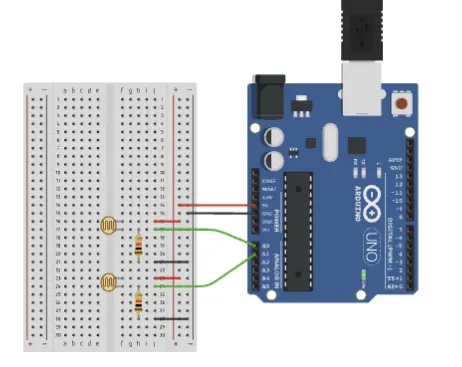
Click image for simulation
Exercise 1: Reading and Comparing Two Light Sensors
First, you will build a Light Survey Tool to diagnose the room. By reading both sensors, your program will compare their values and print which side of the room is brighter, or if the light is equal. This teaches you to store sensor data in variables and use if, else if, and else statements to make clear decisions, mimicking a gardener checking where sunlight falls.
Objective: Read values from two Light Dependent Resistors (LDRs), print them, and compare which side is brighter.
Objective: Read values from two Light Dependent Resistors (LDRs), print them, and compare which side is brighter.
Dual LDR Light Comparison Template
int ldr1 = A0;
int ldr2 = A1;
int value1, value2; // Variables to store readings

void setup() {
  Serial.begin(9600);
}

void loop() {
  value1 = ________(ldr1); // HINT: Use analogRead()
  value2 = ________(ldr2); // HINT: Same function as above

  Serial.print("LDR1: ");
  Serial.print(value1);
  Serial.print(" | LDR2: ");
  Serial.println(value2);

  // Compare the two values
  if (________ > ________) { // HINT: Which variable is greater?
    Serial.println("Left side (LDR1) is brighter");
  } ________ (________ < ________) { // HINT: Use 'else if' and check the opposite
    Serial.println("Right side (LDR2) is brighter");
  } ________ { // HINT: What's left if they aren't greater or less than?
    Serial.println("Both sides have equal light");
  }

  Serial.println("-----");
  delay(1000);
}
Exercise 2: Detecting a Shadow with Boolean Logic
Next, you will create a Shadow Alarm to protect delicate plants. This program must trigger an alert only when 1 of the sensors become dark at the same time, indicating a large object is blocking light over a critical zone. You will learn to use the && (AND) operator to combine conditions and a constant threshold to define what "dark" means for the system to create a trigger.
Objective: Determine if an object is casting a shadow over both sensors simultaneously.
Objective: Determine if an object is casting a shadow over both sensors simultaneously.
LDR Sufficient Light Detection Template
int ldr1 = ___;
int ldr2 = ___;
int value1, ___;
const int darkThreshold = ___; // Threshold for sufficient light

void ___() {
  Serial.___(9600);
}

void ___() {
  value1 = ___(ldr1);
  value2 = ___(ldr2);

  // Check if BOTH sensors have sufficient light
  if ((___ ___ ___) ___ (___ ___ ___)) {
    // HINT: We want values to be ABOVE the threshold, and both conditions must be true
    Serial.___("Condition is suitable for experiment.");
  } else {
    Serial.___("ALERT: Insufficient light detected!");
  }

  ___(500);
}
Part 3: Answer key
Dual LDR Light Comparison
int ldr1 = A0;
int ldr2 = A1;
int value1, value2;

void setup() {
  Serial.begin(9600);
}

void loop() {
  value1 = analogRead(ldr1);
  value2 = analogRead(ldr2);

  Serial.print("LDR1: ");
  Serial.print(value1);
  Serial.print(" | LDR2: ");
  Serial.println(value2);

  // Compare the two values
  if (value1 > value2) {
    Serial.println("Left side (LDR1) is brighter");
  } else if (value1 < value2) {
    Serial.println("Right side (LDR2) is brighter");
  } else {
    Serial.println("Both sides have equal light");
  }

  Serial.println("-----");
  delay(1000);
}
LDR Sufficient Light Detection
int ldr1 = A0;
int ldr2 = A1;
int value1, value2;
const int darkThreshold = 500; // HINT: A constant threshold for 'dark'

void setup() {
  Serial.begin(9600);
}

void loop() {
  value1 = analogRead(ldr1);
  value2 = analogRead(ldr2);

  // Check if BOTH sensors have sufficient light
  if ((value1 > darkThreshold) && (value2 > darkThreshold)) {
    // HINT: Use '>' and '&&' operators - both must be ABOVE threshold
    Serial.println("Condition is suitable for experiment.");
  } else {
    Serial.println("ALERT: Insufficient light detected!");
  }

  delay(500);
}