Part 1: The anatomy of a C program
Function
A function is a named block of code that performs a specific task.
In Arduino programming, functions help organize code into manageable sections. Every function has a name, a return type, and can optionally accept parameters. The structure of a function begins with its definition, which includes what type of data it returns, its name, and any inputs it requires.
In Arduino programming, functions help organize code into manageable sections. Every function has a name, a return type, and can optionally accept parameters. The structure of a function begins with its definition, which includes what type of data it returns, its name, and any inputs it requires.
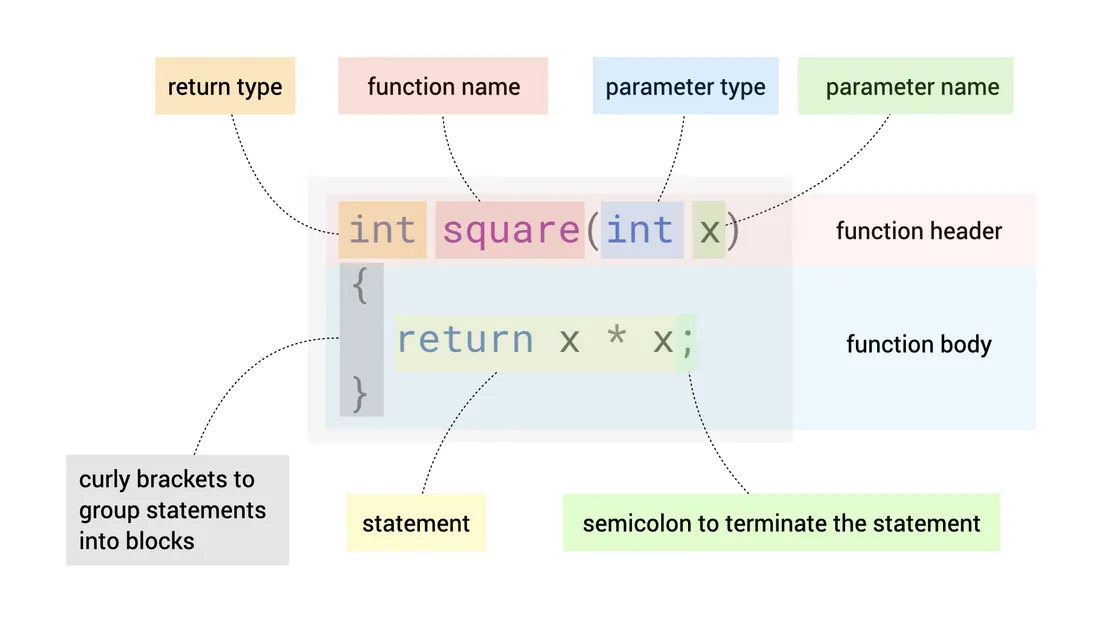
When writing functions in Arduino, several conventions help create clear and maintainable code.
- The return type specifies what kind of data the function provides back to the caller, with common options being `void` (no return), `int` (integer), `float` (decimal number), `bool` (true/false), or `String` (text).
- Parameters define the input a function requires, using types like `int`, `float`, `bool`, or `String` to specify what kind of data the function expects to receive.
- Function names typically follow camelCase convention and use verb-noun pairs that describe the action performed, such as `calculateAverage()` or `readSensor()`.
- Parameter names are usually descriptive nouns that indicate their purpose, like `pinNumber`, `durationMs`, or `sensorValue`, making the function's intent clear when reading the code.
Basic Function Demonstration
void setup() {
  Serial.begin(9600);
  displayMessage();  // Calling the function
}

void loop() {
}

void displayMessage() {
  Serial.println("Hello from a function!");
}
Function Parameters
Parameters are as variables within the parentheses following the function's name. They allow you to pass information into a function when you call it. These parameter variables can only be used within the function itself. Using parameters makes functions more flexible, as the same function can work with different input values each time it is called.
- Parameters are defined in the function header and act as placeholders for values passed into the function when it is called. Parameters make functions flexible by allowing them to accept different inputs.
- Variables are general containers that store data and can be declared anywhere in a program. They hold values for use in calculations, conditions, or operations.
Function with Multiple Parameters
int ledPin = 13;  // Variable declared globally

void setup() {
  pinMode(ledPin, OUTPUT);
}

void loop() {
  blinkLED(ledPin, 500);  // Passing variable and value as parameters
  delay(1000);
}

// 'pin' and 'delayTime' are parameters - they receive values when function is called
void blinkLED(int pin, int delayTime) {
  digitalWrite(pin, HIGH);    // Using parameter 'pin'
  delay(delayTime);           // Using parameter 'delayTime'
  digitalWrite(pin, LOW);
  delay(delayTime);
}
Return Values
Functions can send data back to the part of the program that called them using a return statement. When a function returns a value, you can store that value in a variable or use it directly in expressions. The return statement also ends the function's execution immediately, so any code written after it within the function will not run.
Function with Return Value
void setup() {
  Serial.begin(9600);
  int result = addNumbers(5, 3);  // Store returned value
  Serial.print("Sum: ");
  Serial.println(result);
}

void loop() {
}

int addNumbers(int a, int b) {
  int sum = a + b;
  return sum;  // Send result back
}
Functions That Return Values
Functions that perform calculations and need to provide results use specific return types like int or float. When calling these functions, you typically assign their return value to a variable. This allows you to use the computed result in other parts of your program.
Function with Float Return Value
void setup() {
  Serial.begin(9600);
  float area = calculateArea(5.0, 3.0);  // Using returned value
  Serial.print("Area: ");
  Serial.println(area);
}

void loop() {
}

float calculateArea(float length, float width) {
  return length * width;  // Calculate and return
}
Functions Without Return Values
Functions that perform actions without needing to send back data use the void return type. These functions might display information on a screen, control an output device, or modify existing variables. They are called for their side effects rather than for a computed result.
Void Function Example
void setup() {
  Serial.begin(9600);
  printTemperature(22.5);  // Just performs action
}

void loop() {
}

void printTemperature(float temp) {
  Serial.print("Current temperature: ");
  Serial.println(temp);
}
Using Loops for Repetition
Loops allow you to execute a block of code multiple times. The for loop is useful when you know how many times you want to repeat an action, as it includes initialization, condition checking, and increment steps in one line. The while loop continues running as long as a specified condition remains true, making it suitable for situations where the number of repetitions isn't known in advance.
Basic For Loop Counting
void setup() {
  Serial.begin(9600);

  // Count from 1 to 5
  for(int i = 1; i <= 5; i++) {
    Serial.println(i);
    delay(1000);
  }
}

void loop() {
}
While Loop Counting
int count = 1;

void setup() {
  Serial.begin(9600);

  // Count while less than 6
  while(count < 6) {
    Serial.println(count);
    count++;
    delay(1000);
  }
}

void loop() {
}
Organizing Code with Functions and Loops
Combining functions and loops helps create programs that are easier to read, modify, and debug. Functions allow you to group related operations together, while loops efficiently handle repetitive tasks. This approach to program structure makes it more straightforward to test individual components and reuse code in different projects.
Part 2: Integrated projects
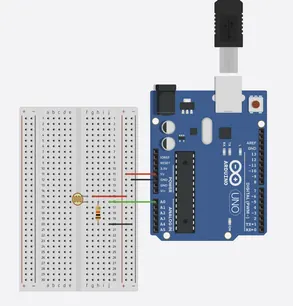
Click image for simulation
Exercise 1: Correct conversion formula and proper return statement
Complete the function that converts Celsius to Fahrenheit.
Temperature Conversion Function Template
________ convertToFahrenheit(________ celsius) {    // HINT: Return type? Parameter type?
    float fahrenheit = _________________________;    // HINT: (celsius * 9.0/5.0) + 32
    ________ fahrenheit;                             // HINT: Send result back
}

void setup() {
    Serial.begin(9600);
    float tempC = 25.0;
    ________ tempF = ______________________________; // HINT: Call the function
    Serial.print("25C = ");
    Serial.print(tempF);
    Serial.println("F");
}

void loop() {
}
Exercise 2: LED blinks specified times and message displays correctly
Write a function that blinks an LED a specified number of times.
Complete Function Practice Template
________ ledPin = 13;                                // HINT: Variable type?

void setup() {
    pinMode(________, OUTPUT);                       // HINT: Which variable?
    Serial.begin(9600);
}

void loop() {
    ________(________, ________);                    // HINT: Function name? Parameters?
    delay(2000);
}

________ ________(________ pin, ________ times) {    // HINT: Return type? Function name? Parameter types?
    for(int i = 0; i < ________; i++) {              // HINT: Which parameter?
        digitalWrite(________, HIGH);                // HINT: Which parameter?
        delay(500);
        digitalWrite(________, LOW);                 // HINT: Which parameter?
        delay(500);
    }
    Serial.print("Blinked ");
    Serial.print(________);                          // HINT: Which parameter?
    Serial.println(" times");
}
Exercise 3: System returns appropriate status for different light levels
System returns appropriate status for different light levels
Light Sensor Function Template
________ lightSensor = A0;                           // HINT: Variable type?

void setup() {
    Serial.begin(9600);
    pinMode(________, INPUT);                        // HINT: Which variable?
}

void loop() {
    ________ lightLevel = ________(________);         // HINT: Type? Function? Parameter?

    ________ status = ____________________;           // HINT: Type? Function call?

    Serial.print("Light level: ");
    Serial.print(________);                          // HINT: Which variable?
    Serial.print(" - Status: ");
    Serial.println(________);                        // HINT: Which variable?

    delay(1000);
}

________ ________________(________ lightValue) {     // HINT: Return type? Function name? Parameter type?
    if (lightValue > 800) {
        return "Very Bright";
    } else if (lightValue >= 500) {
        return "Bright";
    } else if (lightValue >= 200) {
        return "Dim";
    } else {
        return "Dark";
    }
}
Part 3: Answer key
Temperature Conversion Function
float convertToFahrenheit(float celsius) {
    float fahrenheit = (celsius * 9.0/5.0) + 32;
    return fahrenheit;
}

void setup() {
    Serial.begin(9600);
    float tempC = 25.0;
    float tempF = convertToFahrenheit(tempC);
    Serial.print("25C = ");
    Serial.print(tempF);
    Serial.println("F");
}

void loop() {
}
LED Blinking Function
int ledPin = 13;

void setup() {
    pinMode(ledPin, OUTPUT);
    Serial.begin(9600);
}

void loop() {
    blinkLED(ledPin, 3);
    delay(2000);
}

void blinkLED(int pin, int times) {
    for(int i = 0; i < times; i++) {
        digitalWrite(pin, HIGH);
        delay(500);
        digitalWrite(pin, LOW);
        delay(500);
    }
    Serial.print("Blinked ");
    Serial.print(times);
    Serial.println(" times");
}
Light Sensor Status Function
int lightSensor = A0;

void setup() {
    Serial.begin(9600);
    pinMode(lightSensor, INPUT);
}

void loop() {
    int lightLevel = analogRead(lightSensor);

    String status = getLightStatus(lightLevel);

    Serial.print("Light level: ");
    Serial.print(lightLevel);
    Serial.print(" - Status: ");
    Serial.println(status);

    delay(1000);
}

String getLightStatus(int lightValue) {
    if (lightValue > 800) {
        return "Very Bright";
    } else if (lightValue >= 500) {
        return "Bright";
    } else if (lightValue >= 200) {
        return "Dim";
    } else {
        return "Dark";
    }
}