Audio Output
The micro:bit is capable of generating sound through its internal speaker or via an external audio device. This functionality allows the creation of simple tones, melodies, and sound effects for projects. Sound can be used to provide feedback, create alarms, or compose simple music.
Using the Music Blocks
The MakeCode editor includes a "Music" category containing blocks for sound creation. These blocks can play individual notes, rest for a period of silence, or play pre-set melodies. Each note is specified by its name (such as Middle C) and duration. The blocks manage the timing and frequency automatically, converting musical instructions into audible sound.
Creating Simple Melodies

You can compose melodies by arranging note and rest blocks in sequence. The tempo, or speed of the music, can be adjusted to make the melody play faster or slower. By combining different notes with varied durations, you can create short tunes or repeating patterns. This approach allows you to experiment with musical sequences without needing to understand detailed sound synthesis.
Exercise 17: Jukebox
|
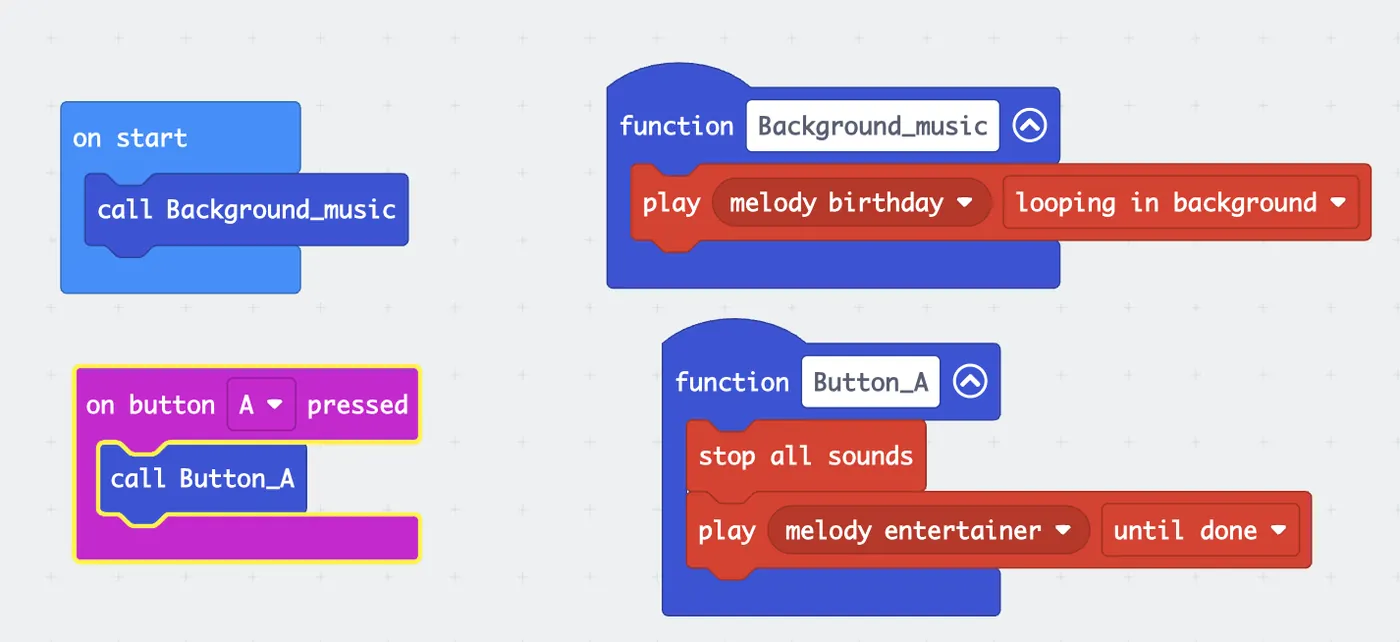
This code will call a Function that will play a background melody in a loop.
At any given time, when you press the 'A' button, you can play a different melody. Please note that you can create and name many other function blocks. But you have to call it if you want to use it specifically (the Function called 'Button_A' is an example). Challenge:
|
 |
Exercise 18: MusicCompass
|
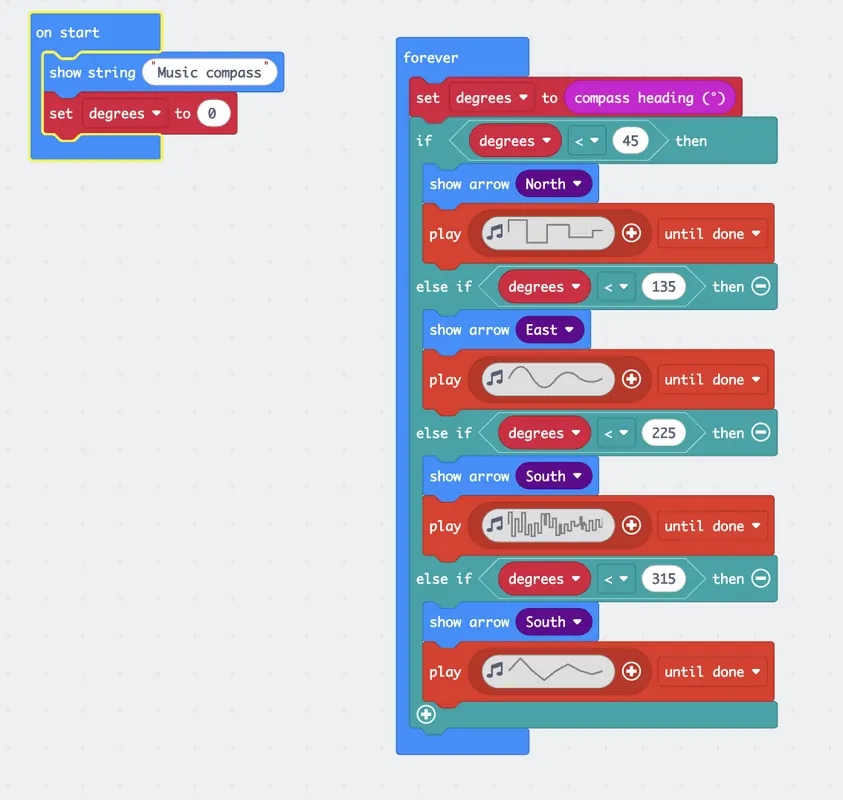
This activity is similar to the previous compass exercise (Activity 12), but it incorporates sound.
The goal is to create a program that displays an arrow indicating a direction on the Micro:bit while simultaneously playing music. Challenge: Create your own custom tune to be played during the activity instead of using a pre-set melody. |
 |
Customizing Music with Notes
To create your own music on the micro:bit, you will work with individual musical notes. Each note has two main properties: its pitch (how high or low it sounds) and its duration (how long it plays). In MakeCode, you can select notes from a palette that includes common pitches like C, D, E, F, G, A, and B. Each pitch can be played at different octaves—higher octaves produce higher sounds, while lower octaves produce lower sounds.
The duration of a note determines its rhythm. You can select note lengths such as whole notes, half notes, quarter notes, or eighth notes. A rest block can be used to insert silence between notes, which is just as important as the sounds for creating rhythm. By arranging these blocks in sequence, you can build a musical phrase.
To organize your music, you can use the “play melody” block. This block allows you to string together a sequence of notes and rests in a single, manageable unit. You type the note names (like “C4” for Middle C) and their durations directly into the block, separating each note with a space. This method lets you write out a tune compactly and play it back with one command. You can adjust the overall tempo to make the entire melody faster or slower.
By experimenting with different combinations of pitches and durations, you can compose simple tunes, create sound effects, or even code familiar songs. This process gives you direct control over the music, allowing you to turn musical ideas into playable code.
The duration of a note determines its rhythm. You can select note lengths such as whole notes, half notes, quarter notes, or eighth notes. A rest block can be used to insert silence between notes, which is just as important as the sounds for creating rhythm. By arranging these blocks in sequence, you can build a musical phrase.
To organize your music, you can use the “play melody” block. This block allows you to string together a sequence of notes and rests in a single, manageable unit. You type the note names (like “C4” for Middle C) and their durations directly into the block, separating each note with a space. This method lets you write out a tune compactly and play it back with one command. You can adjust the overall tempo to make the entire melody faster or slower.
By experimenting with different combinations of pitches and durations, you can compose simple tunes, create sound effects, or even code familiar songs. This process gives you direct control over the music, allowing you to turn musical ideas into playable code.
Exercise 19: MusicalNotes
|
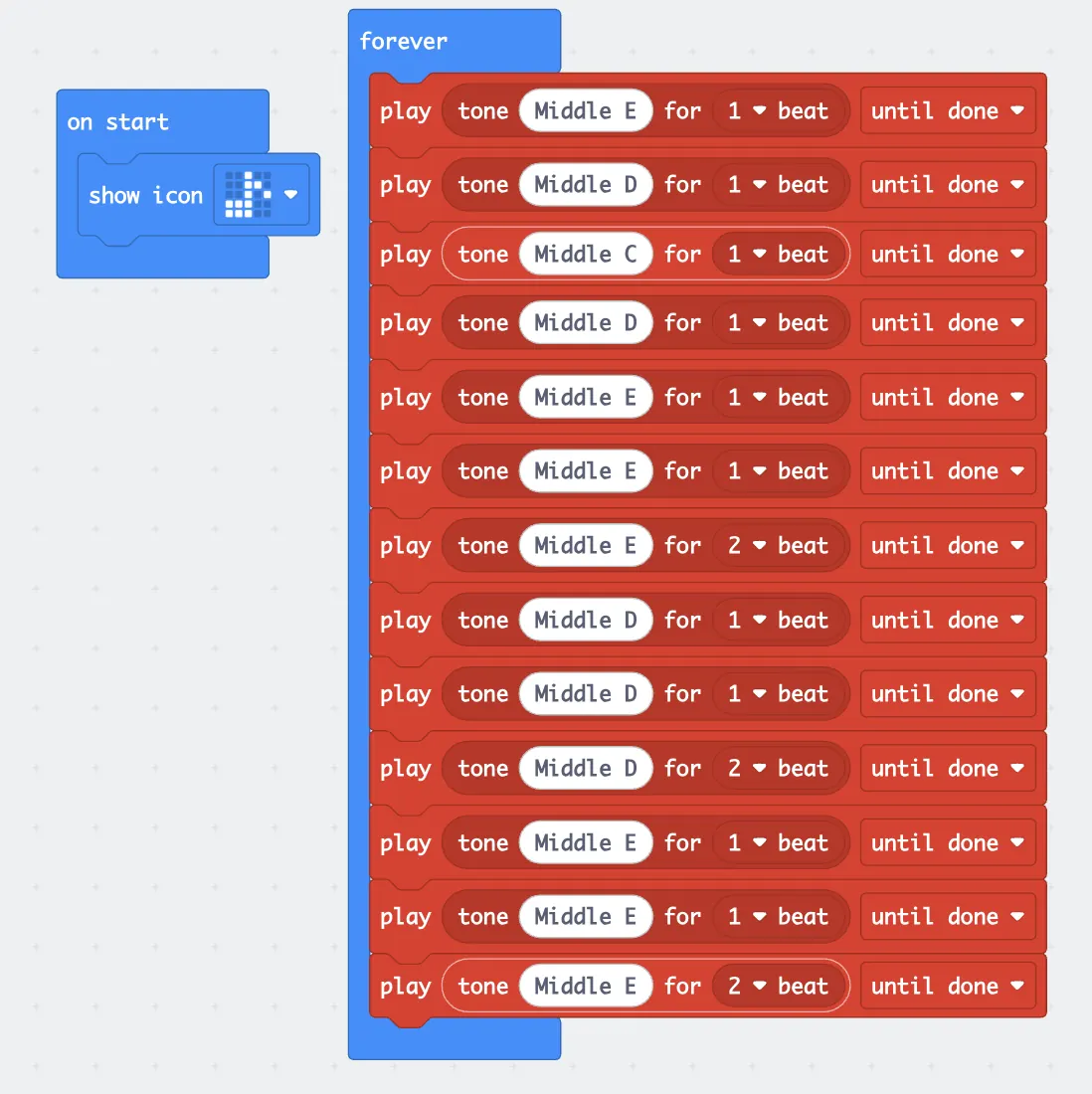
This code shows how to code a musical tune, which plays a part of the 'Mary had a little lamb' song.
The notes are:
Please note that some of the tones are set for 2 beats instead of 1 beat. Challenge: Create your own custom notes and place them all in as instructions for a new Function block. Then place that same Function inside the Forever block so that it can be called. |
 |