Spacecraft Information Card
Navigate to Spreadsheet and choose your group's own satellite series.
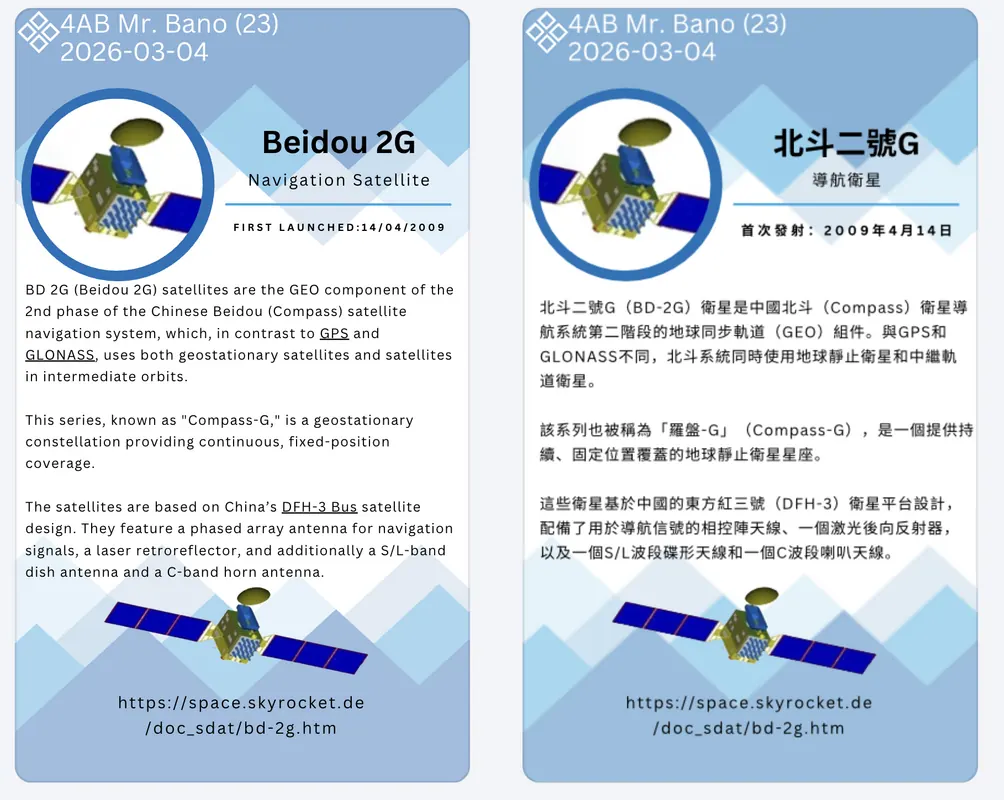
Below is an exemplar of a set of finished Spacecraft Information Cards. It displays two cards of the same satellite (Beidou 2G), one in English and the other in Chinese. Both formats have a clear title, all key facts are listed, and a website citation is included at the bottom. The spacecraft photo was captured from the website cited in the research. Your group can use this example as a model to help you plan what your amazing creation will look like before you start designing in Canva:
Project Workflow: Group Role Assignments
To ensure your group operates efficiently, please discuss with your group and decide who will take on each of the following essential roles:
- student 1 - Graphic designer
- student 2 - Image researcher
- student 3 - Script editor 1
- student 4 - Script editor 2
Your Research Mission: Finding the Facts
For this project, the research goal is to find three to five key pieces of information about your chosen spacecraft. These details will form the main content of your information card. As your group conduct your research, focus on identifying the following points:
- Spacecraft Type: This describes the spacecraft's primary function, such as being a rover, orbiter, lander, or satellite.
- Launch Date: This is the date when the spacecraft was launched into space.
- Target: This refers to the destination of the spacecraft, like the Moon, Mars, or a specific orbit around Earth.
- Main Instruments: These are the primary tools the spacecraft uses for its mission, such as cameras, antennas, or sensors.
- Key Discovery: This is an important finding or a significant achievement from the spacecraft's mission.
How to Build Your Card on Canva
 |
 |
- Step 1: Start a New Design
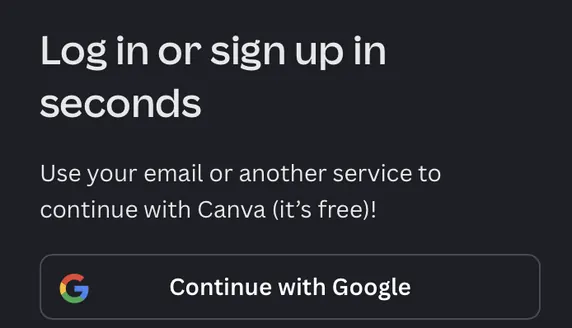
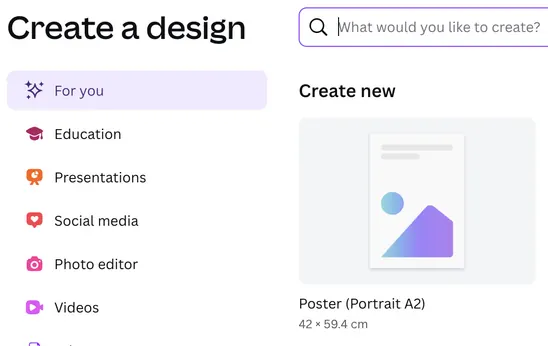
Go to Canva.com. Log in your Google School Account. Click 'Create' and and then choose 'Poster (Portrait A2)'. You can start with a blank page, which looks like a fresh white piece of paper.
Step 2: Choose a Template
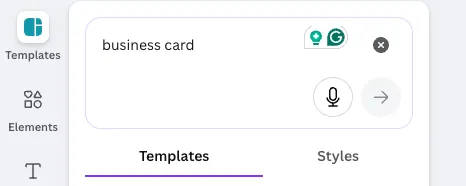
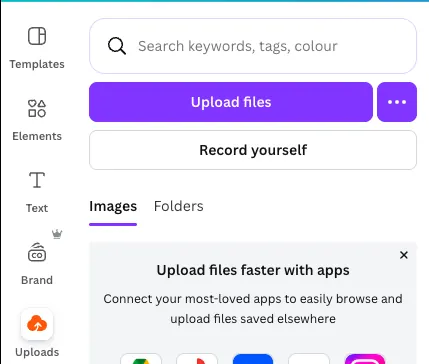
On the top left of the Canva editor interface, click "Template" and choose a template design for your card. A Business Card Template is recommended as its size is perfect for an information card. You can choose a blank one to design from scratch. You can also upload images that you saved on your computer by using the "Uploads" tool on the left side panel of the screen.
Go to Canva.com. Log in your Google School Account. Click 'Create' and and then choose 'Poster (Portrait A2)'. You can start with a blank page, which looks like a fresh white piece of paper.
Step 2: Choose a Template
On the top left of the Canva editor interface, click "Template" and choose a template design for your card. A Business Card Template is recommended as its size is perfect for an information card. You can choose a blank one to design from scratch. You can also upload images that you saved on your computer by using the "Uploads" tool on the left side panel of the screen.
Step 3: Design Your Background and Frame
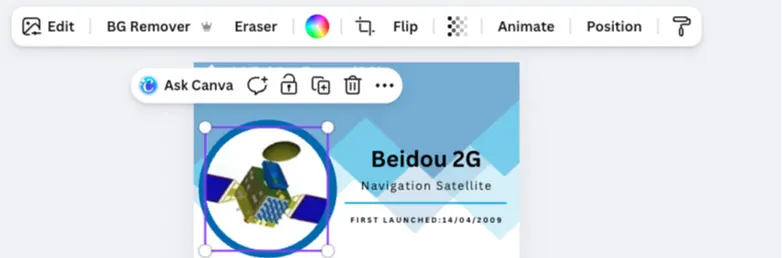
Before adding text, let's create the visual design. Go to the "Elements" tab to find graphics and shapes. In addition, once you click on an existing image or background that is included in your card design, a pop-up box will appear on top that has editing options such as the Edit tool, Background Remover, Eraser, Transparency, Crop, "Flip" Transform tool, and many more.
Before adding text, let's create the visual design. Go to the "Elements" tab to find graphics and shapes. In addition, once you click on an existing image or background that is included in your card design, a pop-up box will appear on top that has editing options such as the Edit tool, Background Remover, Eraser, Transparency, Crop, "Flip" Transform tool, and many more.
You can also use the "Upload" button to upload images to your design template.
Step 4: Add Your Name and Title
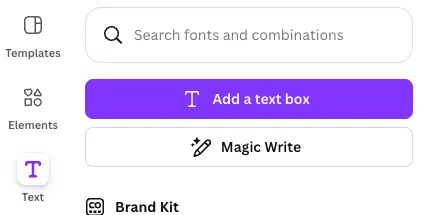
First, provide your name, student number, class, and publication date on the top part of the card. Then, give your card a title. Find the "Text" button. Click it and type the name of the spacecraft you chose. You can even change the color and size of the letters to make your title look bold and exciting.
Enhance your project using the 'Magic Write' AI tool found under the text button. Use this feature to paraphrase and organize your information for a more professional tone, and then use it to translate your content into Traditional Chinese for the second page of your design.
First, provide your name, student number, class, and publication date on the top part of the card. Then, give your card a title. Find the "Text" button. Click it and type the name of the spacecraft you chose. You can even change the color and size of the letters to make your title look bold and exciting.
Enhance your project using the 'Magic Write' AI tool found under the text button. Use this feature to paraphrase and organize your information for a more professional tone, and then use it to translate your content into Traditional Chinese for the second page of your design.
Step 5: Create Your Information Boxes
Every good information card needs facts. Add smaller text boxes for the key details. You need to include at least three to five key pieces of information about your chosen spacecraft:
Spacecraft Type: (Is it a rover, an orbiter, a satellite?) Please note that you can add this as part of the title as well (refer the the exemplar above).
Launch Date: (When did it fly into space?) Please note that you can add this as part of the title as well (refer the the exemplar above).
Target: (Where did it go? Mars, the Moon, or around Earth?)
Main Instruments: (What tools does it have? A camera? A radar?)
Key Discovery: (What is one important thing it found or did?)
Step 6: Add a Citation
A very important part of research is showing where you found your information. Add one last small text box, placing it at the bottom of your poster. In this box, copy and paste the link to the website you used for your research (at least one link is required). This is called a citation.
Every good information card needs facts. Add smaller text boxes for the key details. You need to include at least three to five key pieces of information about your chosen spacecraft:
Spacecraft Type: (Is it a rover, an orbiter, a satellite?) Please note that you can add this as part of the title as well (refer the the exemplar above).
Launch Date: (When did it fly into space?) Please note that you can add this as part of the title as well (refer the the exemplar above).
Target: (Where did it go? Mars, the Moon, or around Earth?)
Main Instruments: (What tools does it have? A camera? A radar?)
Key Discovery: (What is one important thing it found or did?)
Step 6: Add a Citation
A very important part of research is showing where you found your information. Add one last small text box, placing it at the bottom of your poster. In this box, copy and paste the link to the website you used for your research (at least one link is required). This is called a citation.
How to print your completed Spacecraft Information Card
|
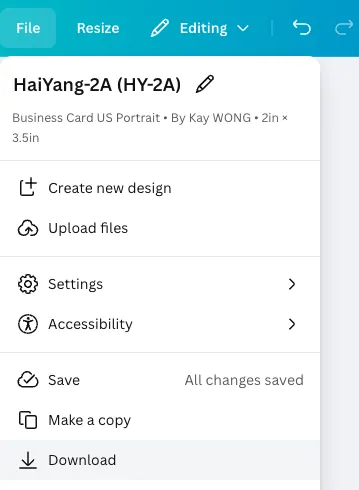
1. Click "File". Then click "Download".
|
 |
|
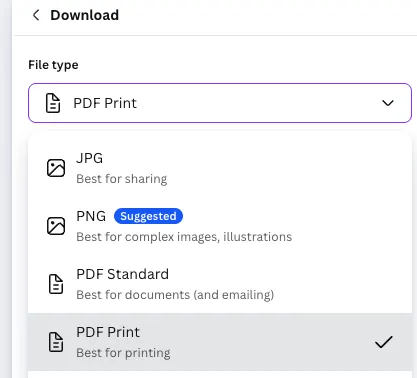
2. Choose "PDF Print (Best for printing)"
|
 |
|
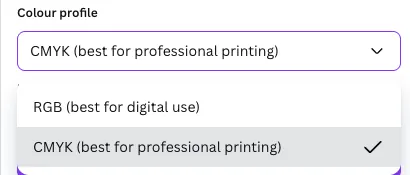
3. For "Colour profile", choose "CMYK (best for professional printing)".
|
 |
|
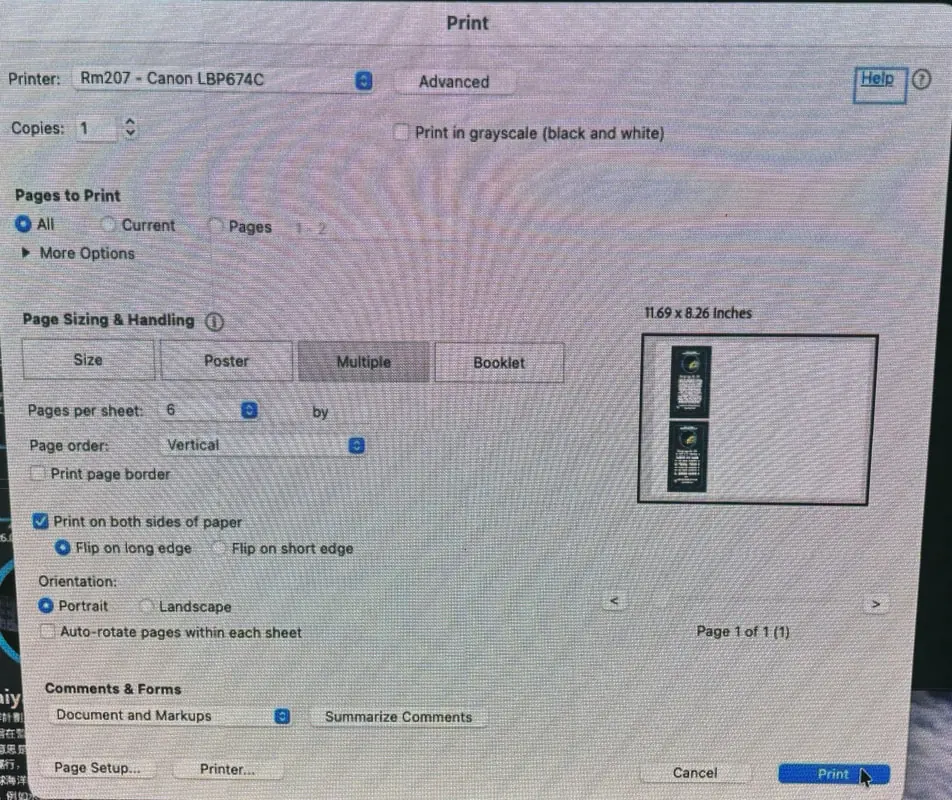
4. Follow these steps when printing:
Then click the blue "Print" button at the bottom right side. |
 |