|
Google Sheets: Your Data Mission Control
Google Sheets is like a super-powered calculator and organiser combined! Just like aerospace engineers use spreadsheets to calculate fuel needs and track rocket parts, you'll learn to organise data and use magical formulas that do math for you. Think of each cell as a tiny storage box where you can put numbers, words, or even special commands! |
 |
Activity 1: Rocket Supply List
What You'll Do:
1. Create a Google Sheets from your folder in Google Drive that you created from the last lesson.
Share General Access rights to ELCHK (viewer access).
2. Click on "Untitled spreadsheet" at the top left
3. Naming format: Class -> Student Number -> Full name. Here's an example: 5AZ_1_KayWong
4. Create column headers: Item Name, Quantity, Price, Total
5. Add 5 rocket supplies (heat shields, fuel tanks, computer chips, etc.)
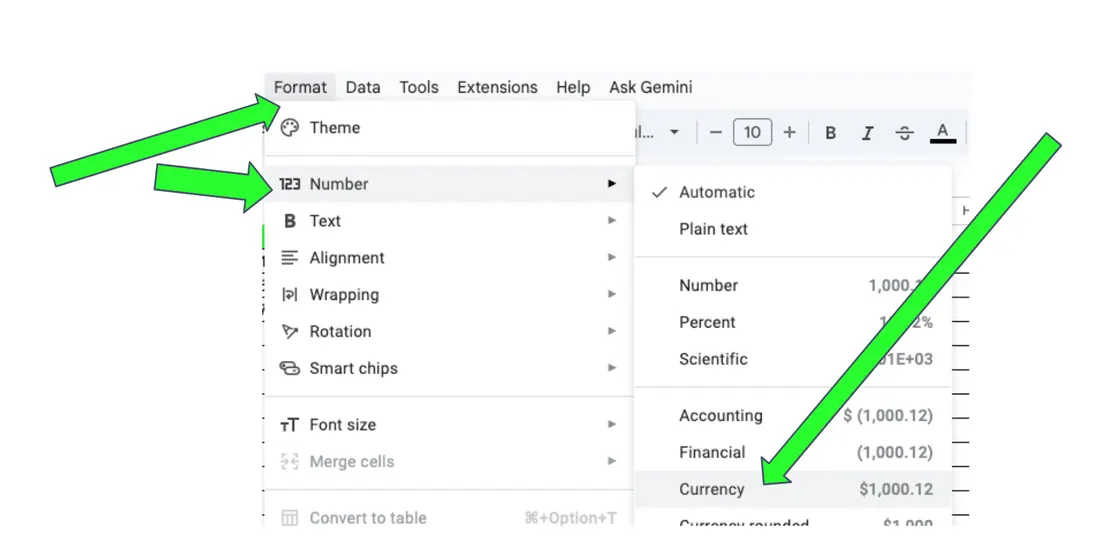
6. Go to ‘Format’, then ‘Number’, then ‘Currency’ (*refer to the photo below)
7. Enter quantities and prices for each item. Use the formula =B2*C2 to calculate totals
8. Copy the formula down to other rows
7. Write ‘Overall Total’ in cell C8. Write this code in cell D8:
=SUM(D2:D6)
1. Create a Google Sheets from your folder in Google Drive that you created from the last lesson.
Share General Access rights to ELCHK (viewer access).
2. Click on "Untitled spreadsheet" at the top left
3. Naming format: Class -> Student Number -> Full name. Here's an example: 5AZ_1_KayWong
4. Create column headers: Item Name, Quantity, Price, Total
5. Add 5 rocket supplies (heat shields, fuel tanks, computer chips, etc.)
6. Go to ‘Format’, then ‘Number’, then ‘Currency’ (*refer to the photo below)
7. Enter quantities and prices for each item. Use the formula =B2*C2 to calculate totals
8. Copy the formula down to other rows
7. Write ‘Overall Total’ in cell C8. Write this code in cell D8:
=SUM(D2:D6)
💡 Pro Tip!
The asterisk (*) means multiply in Google Sheets.
When you type =B2*C2, you're telling Sheets to multiply the number in column B by the number in column C!
The asterisk (*) means multiply in Google Sheets.
When you type =B2*C2, you're telling Sheets to multiply the number in column B by the number in column C!
Activity 2: Playing with Amazing Formulas
Duplicate the first page in your Google Sheets to make a 2nd page, and then play around with these codes! (5 minutes)
|
=SUM(A1:A5) Adds up all numbers from cell A1 to A5. Perfect for totaling your rocket supply costs! =MAX(C1:C8) Finds the highest number in your range. Use it to find the most expensive item! |
=AVERAGE(B1:B10) Finds the average (middle number) of all values. Great for finding average fuel consumption! =MIN(D1:D8) Finds the smallest number. Perfect for discovering your cheapest supply! |
Activity 3: Color-Coding Your Mission Data
Go back to page 1 and let's color-code the cells boxes! (2 minutes)
|
Real aerospace engineers use colors to spot important information quickly!
Let's make your spreadsheet easy to read:
|
 |
Activity 4: Rocket Launch Countdown Calculator
Create a new page in your Google Sheets and play around with these codes! (5 minutes)
This should be your 3rd page of your Google Sheet.
Build Your Countdown Timer!
1. In cell A1, type "Days Until Launch"
2. In cell A2, type "Hours Until Launch"
3. In cell B1, enter the number 10
4. In cell B2, type the formula =B1*24
5. Watch the magic happen! Change the days and see the hours update automatically.
This shows how formulas create dynamic spreadsheets - when you change one number, others automatically update!
Build Your Countdown Timer!
1. In cell A1, type "Days Until Launch"
2. In cell A2, type "Hours Until Launch"
3. In cell B1, enter the number 10
4. In cell B2, type the formula =B1*24
5. Watch the magic happen! Change the days and see the hours update automatically.
This shows how formulas create dynamic spreadsheets - when you change one number, others automatically update!
🌟 Challenge Time!
Can you add another row that calculates minutes? Remember: 1 hour = 60 minutes. What formula would you use?
Can you add another row that calculates minutes? Remember: 1 hour = 60 minutes. What formula would you use?
Activity 5: Creating Your First Chart (2 minutes)
Charts turn boring numbers into exciting pictures! Let's visualize your rocket supply data from the first page of your Google Sheets:
|
Select Your Data Highlight the Item Name and Quantity columns in your supply list |
Insert Chart Click "Insert" in the menu, then choose "Chart" from the dropdown |
Customize It! Try different chart types - pie chart, bar chart, or column chart. Pick your favorite! |
This is a comprehensive overview of data organisation and analysis in Google Sheets.
The key techniques covered included spreadsheet setup, the application of essential formulas such as SUM, MAX, MIN, and AVERAGE, and the generation of clear data visualisations through conditional formatting and chart creation.
These foundational skills are essential for keeping all important mission data neat and ready for analysis.
The key techniques covered included spreadsheet setup, the application of essential formulas such as SUM, MAX, MIN, and AVERAGE, and the generation of clear data visualisations through conditional formatting and chart creation.
These foundational skills are essential for keeping all important mission data neat and ready for analysis.