Creating Professional Documents
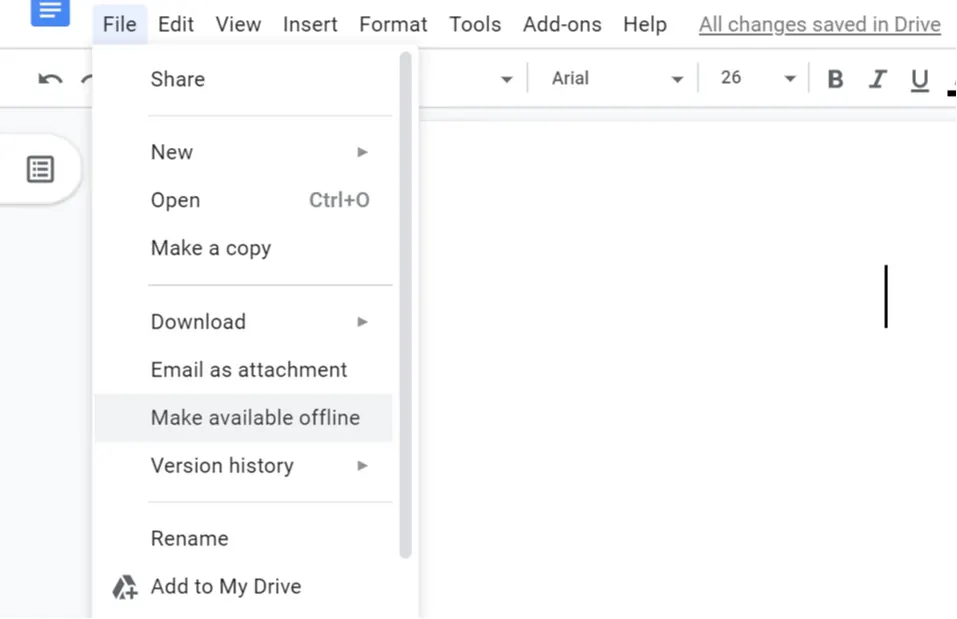
Google Docs provides an online environment for writing and formatting documents. When you open a new document, you begin with a blank page where you can type directly. The interface presents a toolbar at the top of the page with various formatting options. These tools allow you to modify text appearance and structure without requiring specialized desktop software. Documents are automatically saved to your Google Drive account as you work, which helps prevent loss of progress.
Applying Styles and Formatting
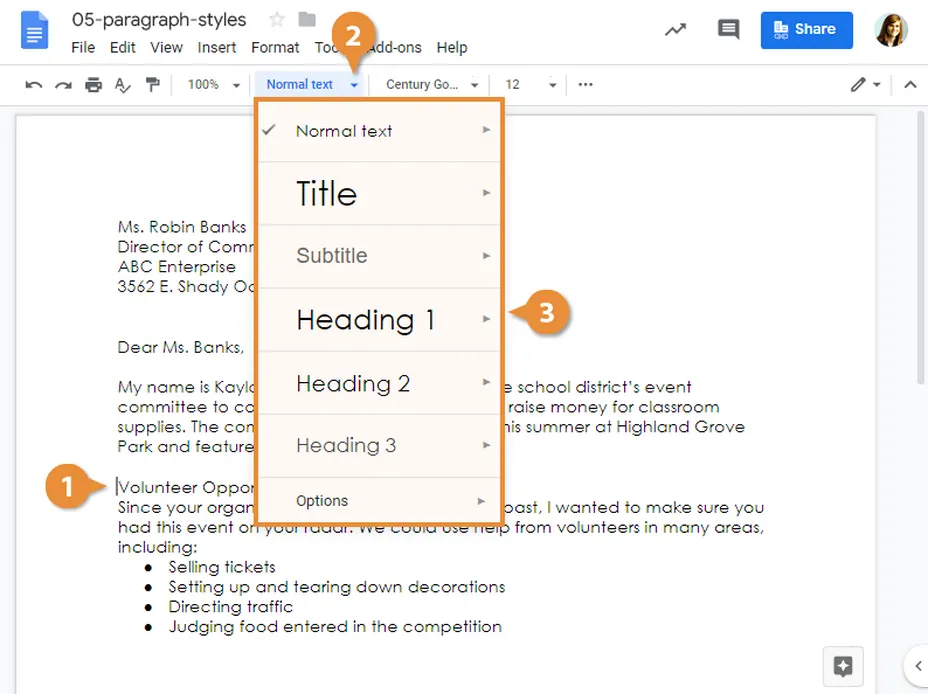
The Styles menu, located in the toolbar, offers predefined formatting options for different parts of your document. You can apply heading styles to create a clear hierarchy in your work, with major sections using Heading 1 and subsections using Heading 2. These styles help maintain consistency throughout your document and can generate an automatic table of contents. Additional formatting tools let you adjust text alignment, line spacing, and bullet points to improve readability and organization.
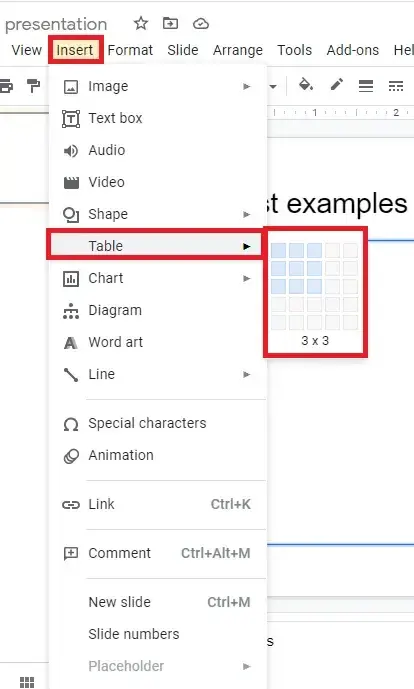
Incorporating Tables and ImagesYou can insert tables to present information in a structured grid format. After placing a table in your document, you can adjust its size and modify cell properties.
Images can be added from your computer, Google Drive, or through web search integration. Once inserted, images can be resized and positioned within the text, with options for text wrapping that determine how text flows around the visual element. 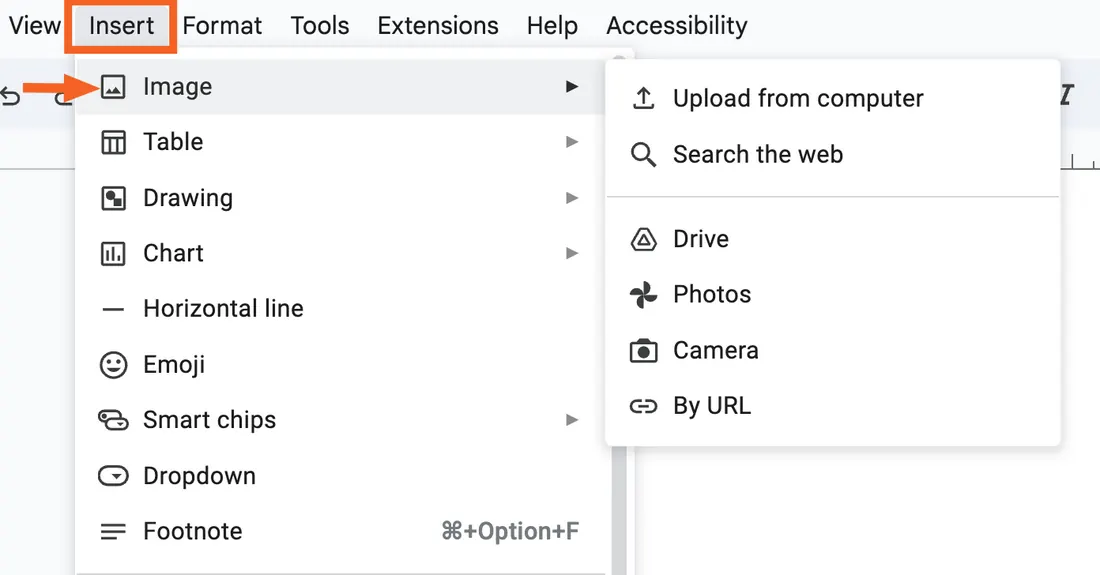 |
 |
Collaboration and Feedback Features
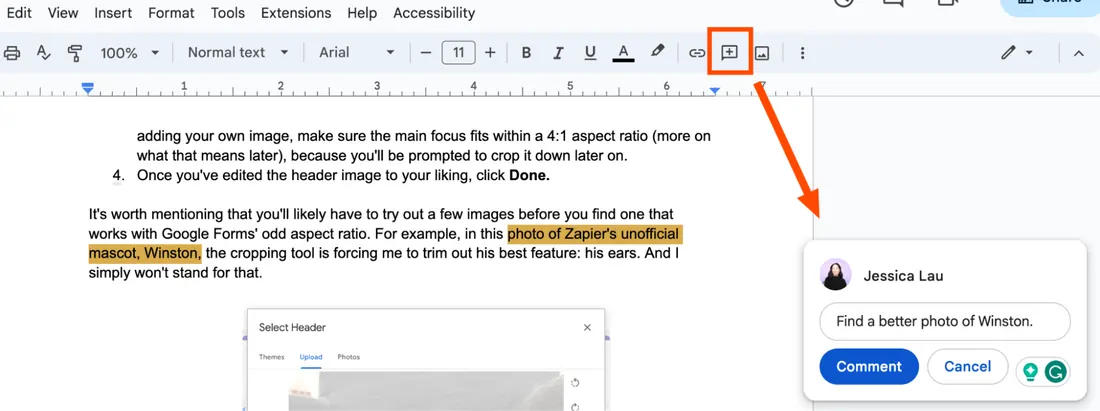
Multiple users can work on the same document simultaneously, with each person's edits appearing in real time. Collaborators are identified by colored cursors and user icons. The comment feature allows you to add notes and suggestions to specific sections of text without directly altering the document content. These comments can be resolved once addressed, creating a record of feedback and revisions.
Managing Sharing and Access
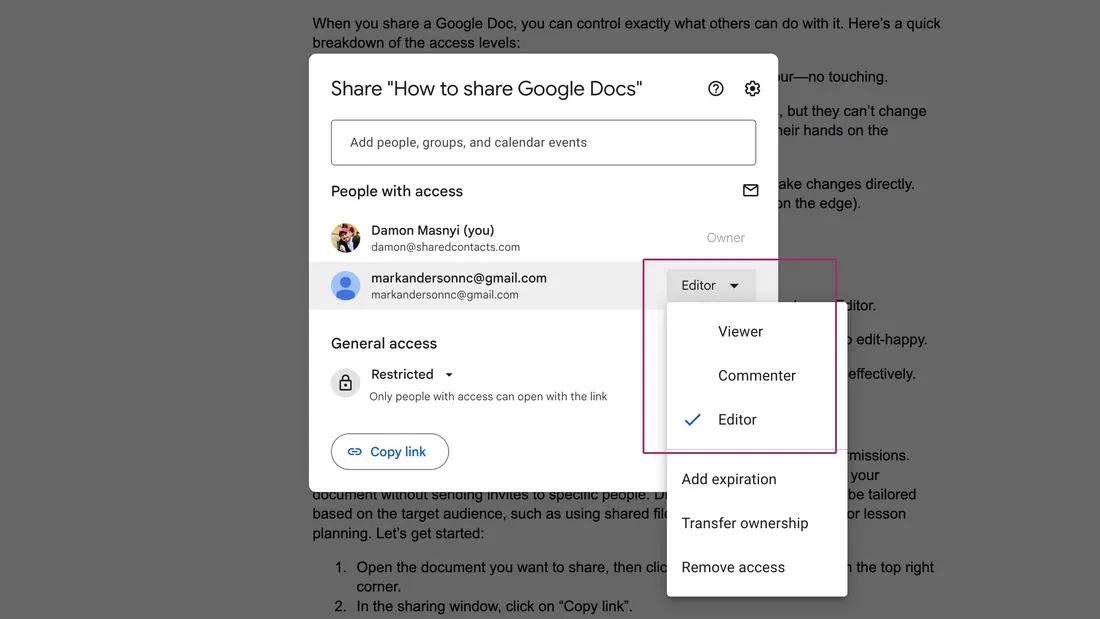
The sharing settings in Google Docs control who can view, comment on, or edit your document. You can invite specific people using email addresses or create a shareable link with predetermined permissions. When collaborating on documents, the version history feature allows you to review changes made over time and restore previous versions if needed. These sharing options provide flexibility for both individual work and group projects.
Activity 2: Google Docs Create Your Space Document (10 minutes)
|
Google Docs is like a special online notebook where you can write down your ideas. The best part is, your Aerospace boss or workmates can also read and write in the same document at the same time, even if they are at home or in Space!
It's a great tool for working together on stories, projects, or anything you want to write! You can use it to create your own amazing work! |
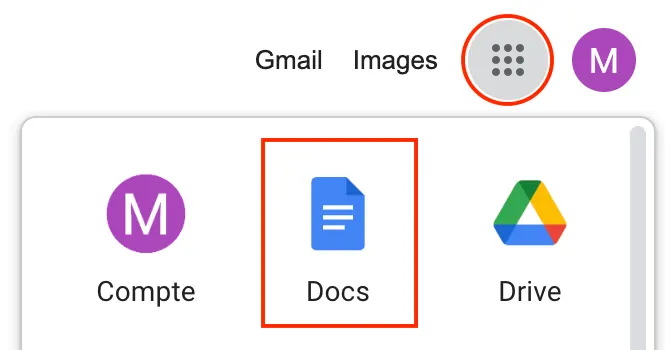 |
1. Make a Google Docs file inside your newly created Google Drive folder.
2. Click on "Untitled spreadsheet" at the top left
3. Naming format: Class -> Student Number -> Full name. Here's an example: 5AZ_1_KayWong
4. Copy all the text from '2: Google Doc Company Training' and paste it into your own Google Docs.
2. Click on "Untitled spreadsheet" at the top left
3. Naming format: Class -> Student Number -> Full name. Here's an example: 5AZ_1_KayWong
4. Copy all the text from '2: Google Doc Company Training' and paste it into your own Google Docs.
5. Try your best to complete all of the '2: Google Doc Company Training' in 10 minutes!
How to copy and paste all of the text:
Step 1: Command +A (to select all text in the ‘2: Google Doc Company Training')
Step 2: Command + C (copy)
Step 3: Command + V (to paste everything to your own Google Docs)
Step 1: Command +A (to select all text in the ‘2: Google Doc Company Training')
Step 2: Command + C (copy)
Step 3: Command + V (to paste everything to your own Google Docs)
Time to Share your Google Docs!

1. Click the Share Button. It's the blue button in the top right.
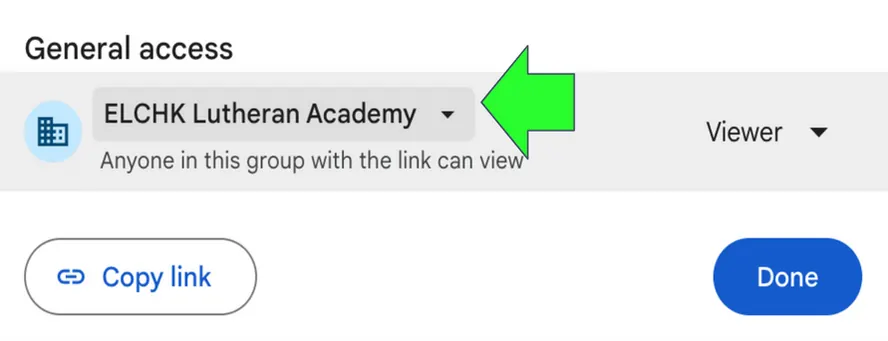
2. Make sure that your General access is exactly like the photo below:
2. Make sure that your General access is exactly like the photo below:
Google Drive and Google Docs missions are now complete!
|
💫 You Can Explore Use Google Drive to organize folders, documents, sheets, and slides! |
🚀 You Can Create You can make and edit beautiful documents using Google Docs! |