Gmail
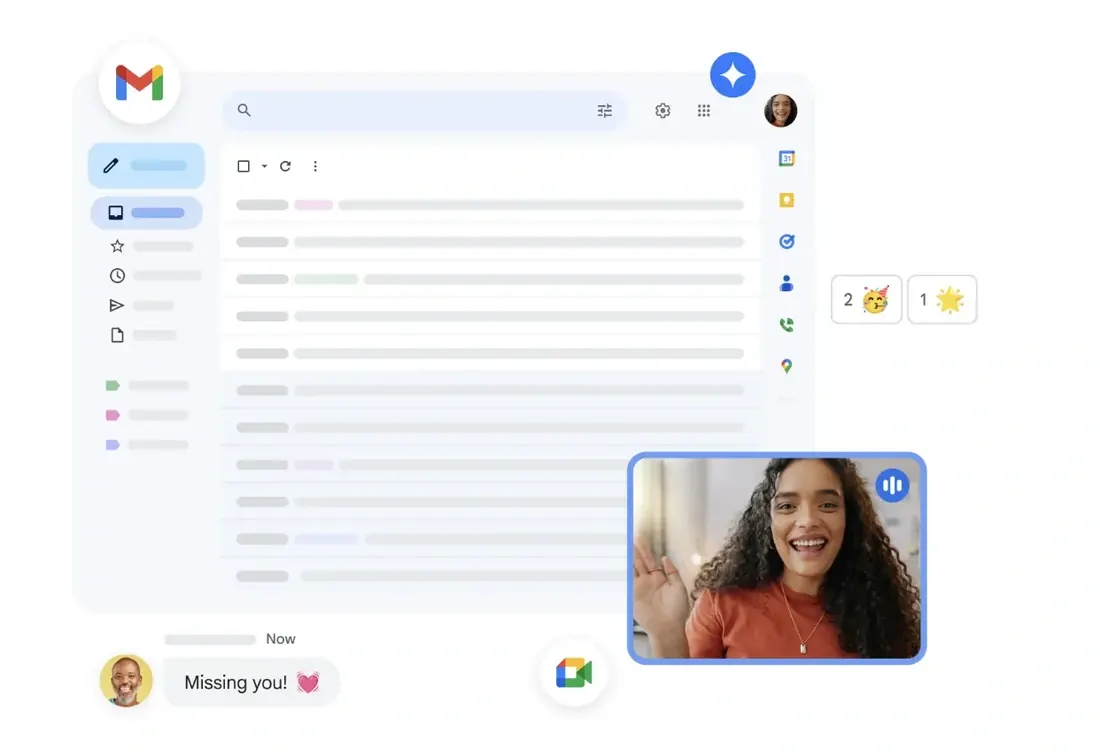
Gmail is an email service commonly used for personal, academic, and professional communication. It operates within a web browser or through mobile applications, providing a central place to send, receive, and organize messages. Learning to use its features effectively can help manage information flow and maintain clear communication for school projects and other activities.
Organizing the Inbox with Labels
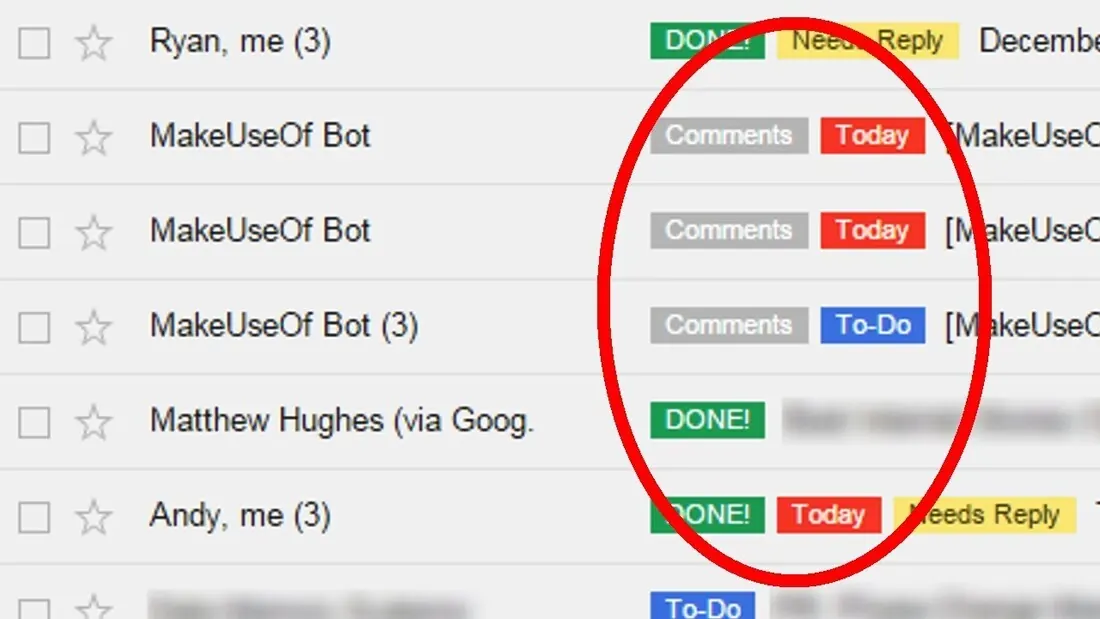
As the number of emails increases, keeping the inbox organized becomes useful. Gmail uses a system called "labels" to categorize messages. You can create custom labels for different subjects, like "Science Class" or "School Club."
Labels function like folders, but a single email can have multiple labels without being moved from the inbox. This allows you to find related emails later by clicking on a label in the sidebar. You can apply labels manually or set up filters to automatically label incoming messages from specific senders or containing certain keywords, helping to sort information as it arrives.
Labels function like folders, but a single email can have multiple labels without being moved from the inbox. This allows you to find related emails later by clicking on a label in the sidebar. You can apply labels manually or set up filters to automatically label incoming messages from specific senders or containing certain keywords, helping to sort information as it arrives.
 |
 |
Composing Professional Emails
|
The process of writing a professional email begins with a clear subject line that summarizes the email's purpose. The greeting should address the recipient appropriately, using titles like "Dear Mr. Smith" or "Hello Professor Chen" when needed.
The body of the email should be concise and organized, stating the main point or request clearly at the beginning. It is helpful to use paragraphs to separate different ideas. Before sending, you can review the email for spelling and clarity, and ensure any necessary files are attached. A closing, such as "Sincerely" or "Best regards," followed by your name, provides a clear end to the message. |
 |
Managing Contacts
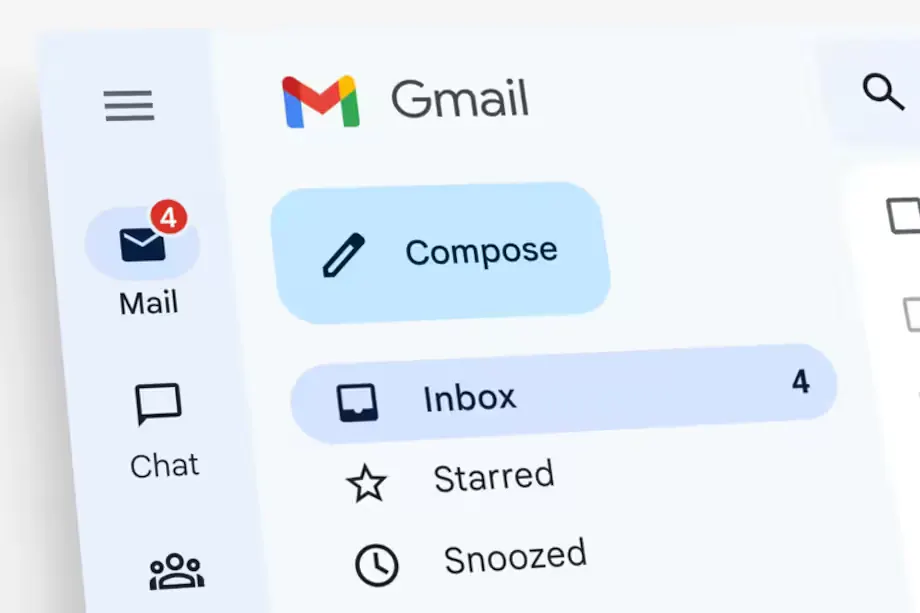
Gmail Contacts acts as your digital address book, storing information like names, email addresses, and phone numbers for people you email often. This organization makes composing emails faster, as Gmail can automatically suggest the correct address when you start typing a contact's name.
To streamline communication further, you can create contact groups, such as "Science Class" or "Soccer Team." This allows you to send a single email to everyone in the group without entering each address separately. Keeping your contacts updated helps ensure your messages reach the right people efficiently.
To streamline communication further, you can create contact groups, such as "Science Class" or "Soccer Team." This allows you to send a single email to everyone in the group without entering each address separately. Keeping your contacts updated helps ensure your messages reach the right people efficiently.
Sending an Email
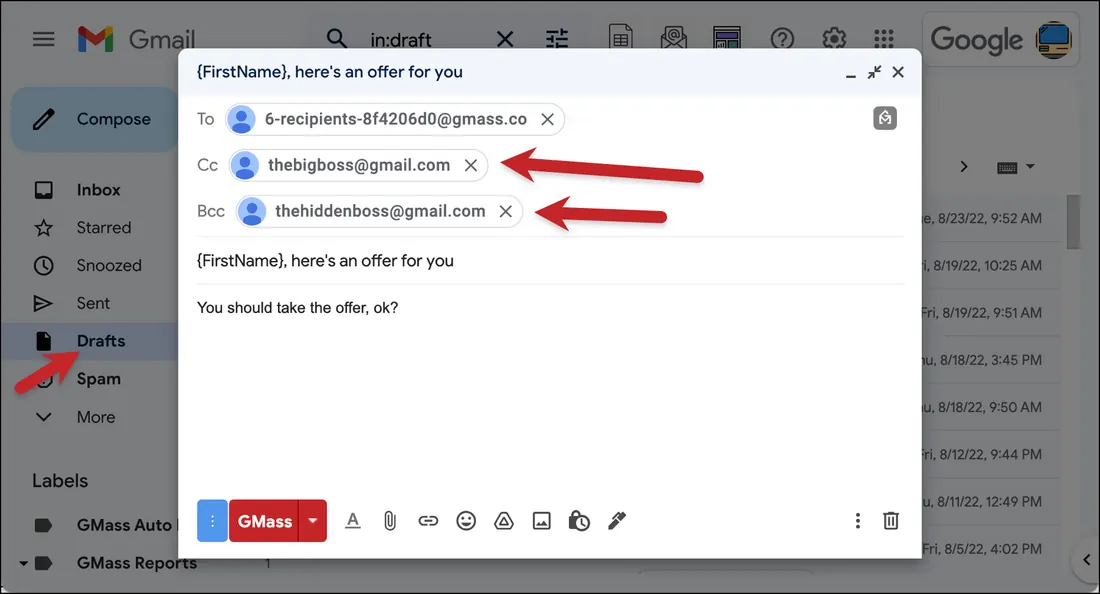
The CC (Carbon Copy) and BCC (Blind Carbon Copy) fields manage how recipients see an email and each other.
Use the CC field for secondary recipients who should be openly kept in the loop. Everyone receiving the email can see the addresses listed in the To and CC fields, showing who is included in the conversation.
The BCC field is used for privacy. Recipients added here receive the email, but their email address is hidden from all others. This is the standard practice for sending one message to a group of people who do not know each other, like a class announcement, as it protects everyone's contact information. It can also be used to discreetly inform a third party, such as a teacher or project lead, without the primary recipients' knowledge.
Use the CC field for secondary recipients who should be openly kept in the loop. Everyone receiving the email can see the addresses listed in the To and CC fields, showing who is included in the conversation.
The BCC field is used for privacy. Recipients added here receive the email, but their email address is hidden from all others. This is the standard practice for sending one message to a group of people who do not know each other, like a class announcement, as it protects everyone's contact information. It can also be used to discreetly inform a third party, such as a teacher or project lead, without the primary recipients' knowledge.
The Subject Line and Recipient Fields
At the top of the new message window, you will find the "To," "Cc," and "Bcc" fields for adding recipient email addresses. Directly below this is the "Subject" field. The subject line provides a summary of the email's content and is the first piece of information a recipient sees. Using a clear and specific subject helps the recipient understand the email's purpose and priority before they open it.
The Formatting Toolbar and Message Body
The main body of the email is where you type your message. Above this text area is a formatting toolbar. This toolbar provides options to change the font style and size, apply bold or italic formatting, create bulleted or numbered lists, and adjust text alignment. These tools can be used to improve readability by organizing information into clear sections and emphasizing key points.
The Attachment and Integration Features
Below the formatting toolbar, you will find a paperclip icon. Clicking this allows you to attach files from your computer to the email. Gmail also integrates with Google Drive, providing an option to insert files stored there as links or attachments. This is useful for sharing documents without using storage space in the email itself. Before sending, a feature called "Confidential mode" can be enabled to set an expiration date for the email or require a passcode for access.
The Send and Scheduling Options
Once the email is ready, the blue "Send" button is used to deliver it immediately. Clicking the small arrow next to this button reveals additional options. One of these is "Schedule send," which lets you choose a future date and time for the email to be sent automatically. Another is "Discard," which closes the draft without saving, while the "X" in the top corner saves the message as a draft to be finished later. These features provide control over the timing and management of your outgoing messages.
At the top of the new message window, you will find the "To," "Cc," and "Bcc" fields for adding recipient email addresses. Directly below this is the "Subject" field. The subject line provides a summary of the email's content and is the first piece of information a recipient sees. Using a clear and specific subject helps the recipient understand the email's purpose and priority before they open it.
The Formatting Toolbar and Message Body
The main body of the email is where you type your message. Above this text area is a formatting toolbar. This toolbar provides options to change the font style and size, apply bold or italic formatting, create bulleted or numbered lists, and adjust text alignment. These tools can be used to improve readability by organizing information into clear sections and emphasizing key points.
The Attachment and Integration Features
Below the formatting toolbar, you will find a paperclip icon. Clicking this allows you to attach files from your computer to the email. Gmail also integrates with Google Drive, providing an option to insert files stored there as links or attachments. This is useful for sharing documents without using storage space in the email itself. Before sending, a feature called "Confidential mode" can be enabled to set an expiration date for the email or require a passcode for access.
The Send and Scheduling Options
Once the email is ready, the blue "Send" button is used to deliver it immediately. Clicking the small arrow next to this button reveals additional options. One of these is "Schedule send," which lets you choose a future date and time for the email to be sent automatically. Another is "Discard," which closes the draft without saving, while the "X" in the top corner saves the message as a draft to be finished later. These features provide control over the timing and management of your outgoing messages.
Staying safe with Email
Keeping Your Account Secure:
Keeping your Gmail account secure involves several straightforward practices. It is important to keep your password private, as sharing it allows others to access your account and read your messages. A strong password uses a mix of letters, numbers, and symbols. Think of your password as a key that only you should hold.
Thinking Before You Click:
When you receive an email, be careful before clicking any links or opening attachments, particularly if the message is unexpected or from an unknown sender. These can sometimes lead to unsafe websites or contain files that might harm your computer. If you are unsure about an email's safety, ask a parent or teacher before you interact with it.
Handling Strange or Scary Messages:
If you get a strange, threatening, or scary email, do not reply to it. Replying can let the sender know your email is active. Instead, you should tell a parent or teacher about the message right away. They can help you identify if it is a scam or something more serious and can report it to help keep you safe.
Keeping your Gmail account secure involves several straightforward practices. It is important to keep your password private, as sharing it allows others to access your account and read your messages. A strong password uses a mix of letters, numbers, and symbols. Think of your password as a key that only you should hold.
Thinking Before You Click:
When you receive an email, be careful before clicking any links or opening attachments, particularly if the message is unexpected or from an unknown sender. These can sometimes lead to unsafe websites or contain files that might harm your computer. If you are unsure about an email's safety, ask a parent or teacher before you interact with it.
Handling Strange or Scary Messages:
If you get a strange, threatening, or scary email, do not reply to it. Replying can let the sender know your email is active. Instead, you should tell a parent or teacher about the message right away. They can help you identify if it is a scam or something more serious and can report it to help keep you safe.
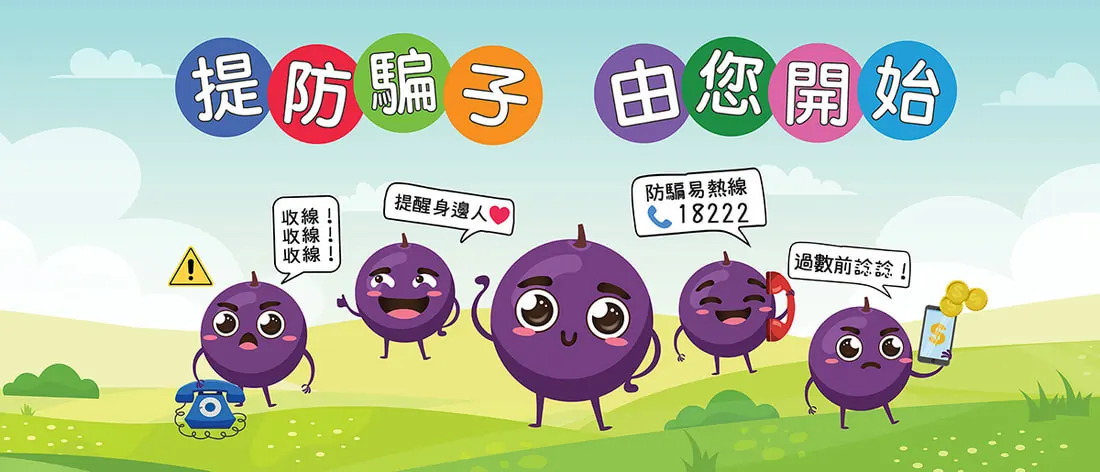
Becoming a Safe Digital Citizen
 |
By consistently following these three simple safety rules:
You can confidently and securely navigate your digital communication in Gmail. Staying alert and responsible is the key to being a safe and successful digital citizen. |
Activity 8: Composing Your First Professional Email (10 minutes)
Gmail is how aerospace engineers stay connected! Real engineers send hundreds of emails, so learning these skills now will help you throughout your aerospace career! We use email to share updates, send meeting invitations, and collaborate with your team. Today, you'll learn to write professional emails, schedule messages for later, and organize your inbox.
Write Your Meeting Announcement:
Include: Date, time, location, and what to bring.
End with one of these:
- Open Gmail and click "Compose"
- Send to: Your classmates' email addresses
- Subject: "Rocket Launch Team Meeting - Next Tuesday"
- Body: Write a friendly but professional message
- Click the paperclip icon to attach a rocket image that you want to share with them.
Include: Date, time, location, and what to bring.
End with one of these:
- Best regards,
- Yours sincerely,
- Respectfully,
- Kind regards,
- Cordially,
📝 Email Writing Tips:
- Always start with a greeting in the first sentence of your email body.
- Be clear and polite.
- Check your spelling before clicking send.